
Sending & SMTP
Verify deliverability after setup
On this page
A green Success toast on the test send only means the provider accepted the message. Whether it lands in the inbox or in spam is what this step verifies.
Send a test mail to multiple addresses
- Open FreddyMail > SMTP Setup and click Send test mail.
- Send to at least three addresses in sequence: a Gmail account, an Outlook account, and your own domain address.
- In each inbox, verify whether the message arrives in the inbox or in spam.
Read the headers
In the receiving client, display the original headers (Gmail: Show original, Outlook: View source). Three lines matter:
Authentication-Results: spf=pass— SPF is good.dkim=pass— the DKIM signature is valid.dmarc=pass— DMARC policy is satisfied.
If any of those say fail, your provider’s setup area (SendGrid, Mailgun, …) helps you correct the DNS values.
Check the FreddyMail log entry
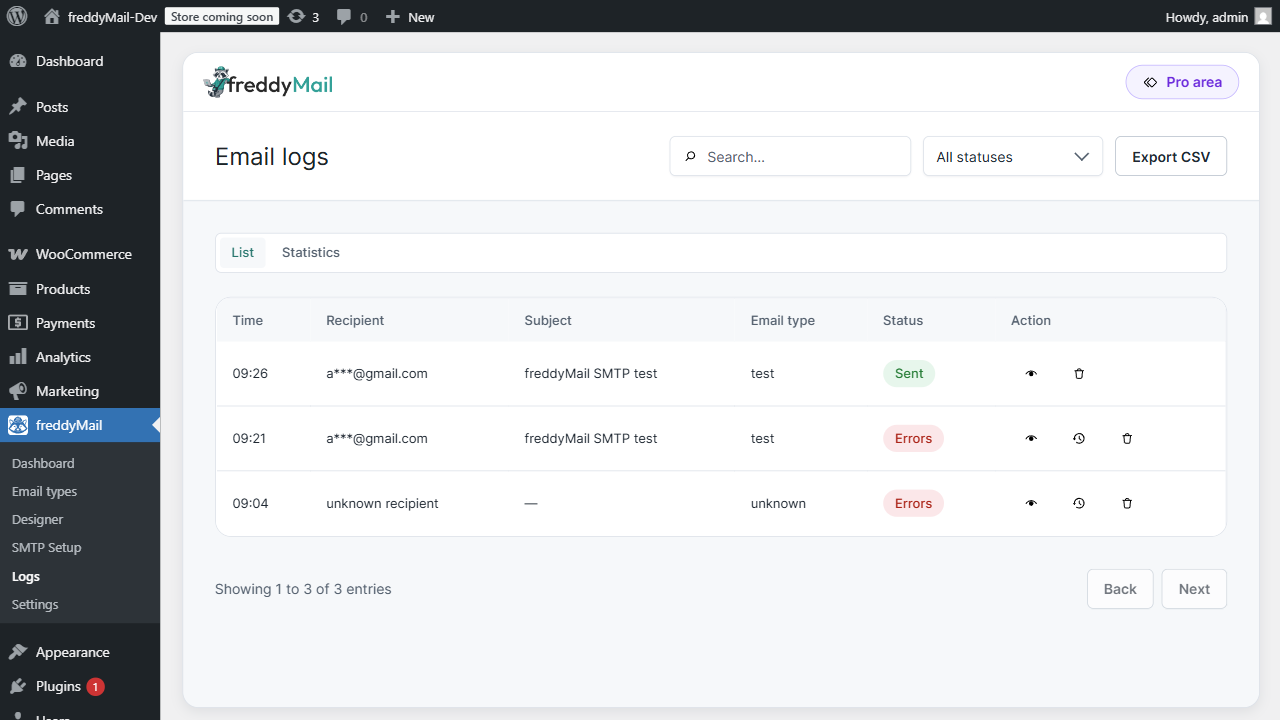
Open FreddyMail > Logs and find the test mail. Three columns give you the most important signals:
- Status —
Success(provider accepted) orError(provider rejected). - Recipient — does it match the test recipient?
- Provider response — on errors this often spells out the cause (for example
550-5.7.1 SPF fail).
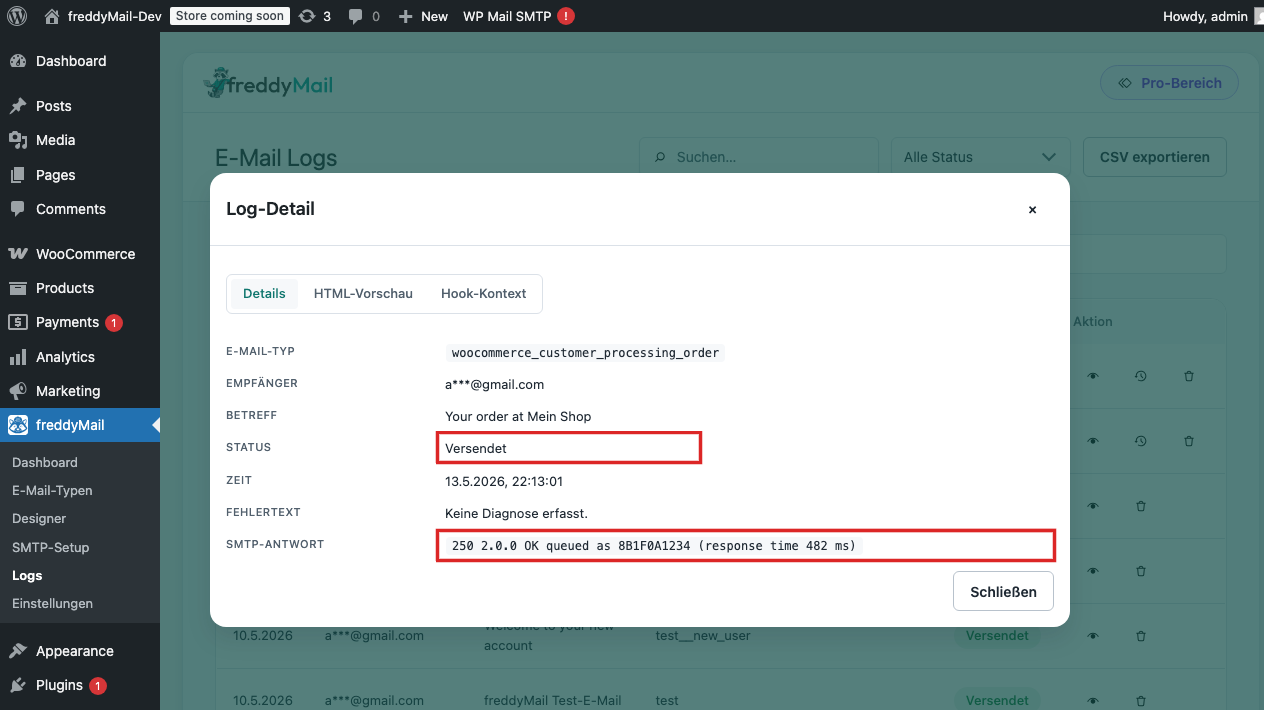 Annotated
 When mail lands in spam
Useful second-opinion tools:
mail-tester.com— sends a report to a disposable address.mxtoolbox.com/SuperTool.aspx— checks SPF/DKIM/DMARC records.- The receiving client’s header view is always the source of truth.